How to Make Uptown Funk AI Video from One Photo
 Uptown Funk AI Video
How to make uptown funk AI video: upload a lead photo, optional crew, tick consent, pick 768p or 2K, sign in, buy a pack, generate, wait, and download the 15-second MP4.
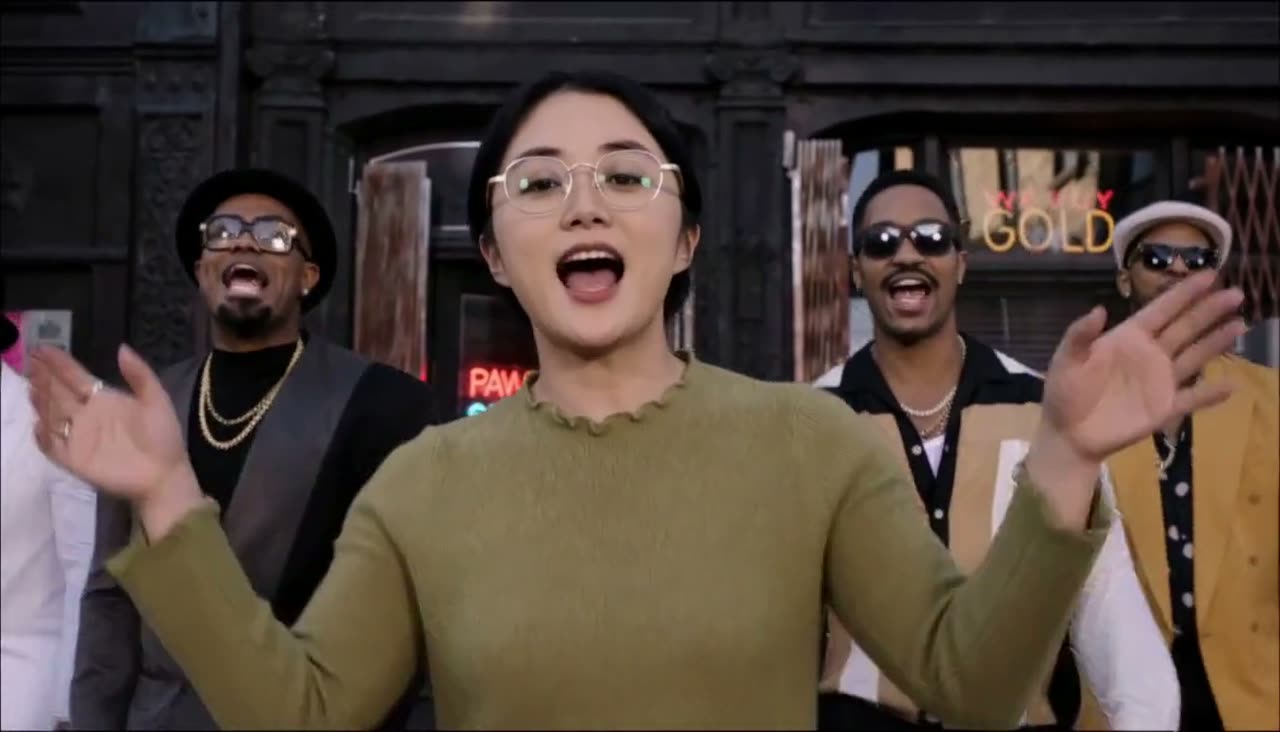
If you want to know how to make uptown funk AI video without editing software, the whole job is a photo, a consent box, and a one-time credit pack. You get a 15-second 16:9 MP4 with the song already in the file, and the lead lip-syncs it. There is no free video and no subscription. This page walks through the same steps the Uptown Funk AI video generator uses, in the order you will actually do them.
The dance itself is the street clip people started swapping faces into after the AI CEO version spread. If you want that backstory, read where the Uptown Funk AI trend comes from. If you specifically want a boss or a team in the suits-and-street version, the AI CEO dance page is the shorter brief. This guide stays on the buttons.
How to make uptown funk AI video
Start on the generator, not in a separate editor. On a phone, the sample video sits at the top of the home page and the Upload your photo button jumps you to the form. On a desktop the form is already beside the title. The sample is the real output shape: widescreen, with the song, not a tall crop.
1. Add the lead photo
Use one JPG, PNG, or WebP, up to 10 MB. One person, face large and clear, looking at the camera. Glasses and clothes in that photo are what show up in the video. The outfit is not a costume from the template. A half-body photo is fine. The best photo for an Uptown Funk AI video covers what usually fails, including group shots, sunglasses, tiny faces, and heavy filters.
2. Add crew only if you want them
You can add up to four more photos at no extra cost. Upload order is left to right for the backup dancers. Empty spots keep the original dancers. Everyone must be an adult who agreed. The Uptown Funk AI video with friends guide is only about that row of photos.
3. Tick the consent box
The box says everyone in the photos is you or an adult who said yes, and that you agree to the terms. No celebrities, strangers, or children. The generator will not start without that tick. Do not upload a public figure because the original clip used famous names. This site does not remake real celebrities.
4. Pick the quality
768p uses 100 credits. 2K HD uses 300 credits. Both are 15 seconds, 16:9, with the song and lip-sync, and neither has a watermark. 768p is the one most people post from a phone. 2K is the sharper file if you have the credits. You can switch quality before you press the button. The price of the click changes with that choice, because the credit cost changes.
5. Sign in
Pressing the main button asks you to sign in if you are not already in. The photos you picked stay in this browser, including through that sign-in, so you should not have to choose them again when you come back. They are stored only on this device for this step, and they expire from that local save after a day.
6. Buy a pack if you are short
Signed in with too few credits, the button becomes a link to packs instead of an upload. That is on purpose: the site should not take your photo just to refuse the render. Packs are one-time PayPal payments, using a PayPal balance or a card PayPal accepts. There is no subscription.
- $9.99 is 100 credits, which is one video in 768p.
- $19.99 is 300 credits, which is three videos in 768p or one in 2K.
- $49.99 is 1000 credits, which is ten videos in 768p or three in 2K.
Credits last 12 months. Purchased credits are not refundable. The pricing page is the catalog. After PayPal you come back to the generator, and the photos you already picked are still there if this browser kept them.
7. Generate and wait
Once you have the credits, the consent tick, and a lead photo, press the button on the generator form. The upload happens then, not when you first chose the file. A video usually takes 5 to 8 minutes. At busy times it can take up to 15. You can leave the tab and come back in the same browser. The finished video waits in the generator. If the render fails or times out, the credits for that attempt come back automatically.
8. Download and post
Download the MP4 from the site while you are signed in. The file name is uptown-funk-ai.mp4. It already has the song, and the lead is lip-syncing. Photos are set to expire 24 hours after upload. Cleanup can run later than that, so do not treat 24 hours as a promise that the file is already gone from disk, but the site does not keep photos to sell or to train on. Finished videos stay available to download and are not removed by that photo cleanup.
TikTok, Instagram, and YouTube may mute or limit a post that contains the song. If that happens, post again using the in-app Uptown Funk sound. The posting guide covers captions and how a 16:9 file sits inside a vertical app. If you have used a face-paste template before, the CapCut comparison explains what is different here: this is a new video of the dance, not a sticker of your photo on top of someone else's clip.
That is the full path. Photo, optional crew, consent, quality, sign in, pack if you need one, generate, wait, download. The Uptown Funk AI video generator is where all of those controls actually live.